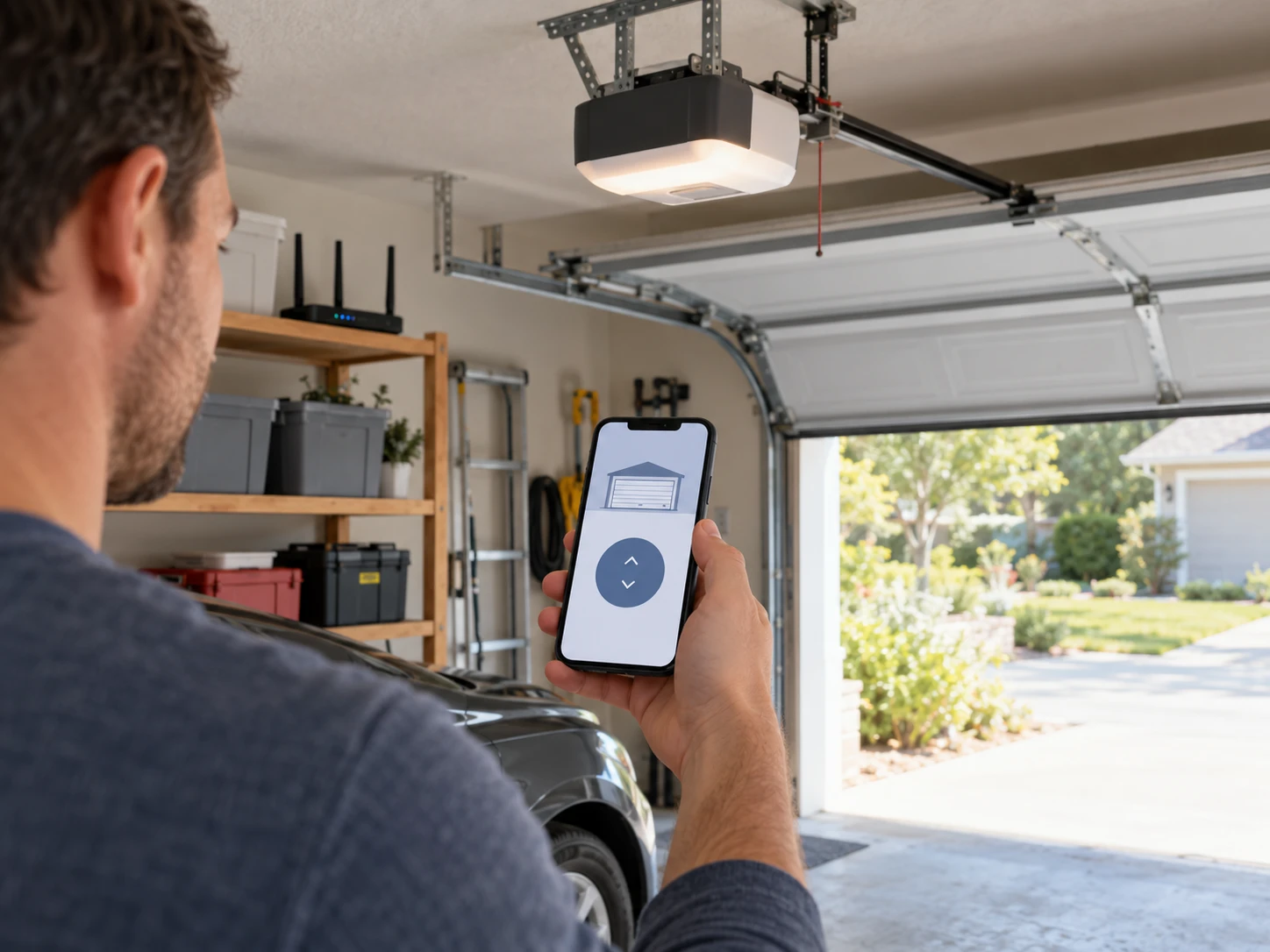
Getting a Ryobi garage door opener onto Wi-Fi lets you open and close the door from your phone and check whether it’s open. The setup runs entirely through Ryobi’s app, and the two things that trip people up are the 2.4 GHz network requirement and the app itself, which hasn’t been updated in years.
This guide is based on Ryobi’s GD200 operator’s manual and the app’s own store listing. Several guides tell you to hold a “Wi-Fi button” on the opener for about 5 seconds. We couldn’t confirm that button in Ryobi’s GD200 manual, so follow the app: it tells you exactly when and how to put the opener into setup mode.
Short Answer: Install Ryobi’s GDO System app, create an account and add your opener as a new device. Make sure your phone is on your home 2.4 GHz network, keep it near the opener, and follow the app’s prompts to enter your Wi-Fi password. If setup fails, check that the opener isn’t in lock mode, restart it by unplugging it for 30 seconds, and try again.
Before You Start: What You Need
Have these ready before you open the app. Most failed setups come down to one of them.
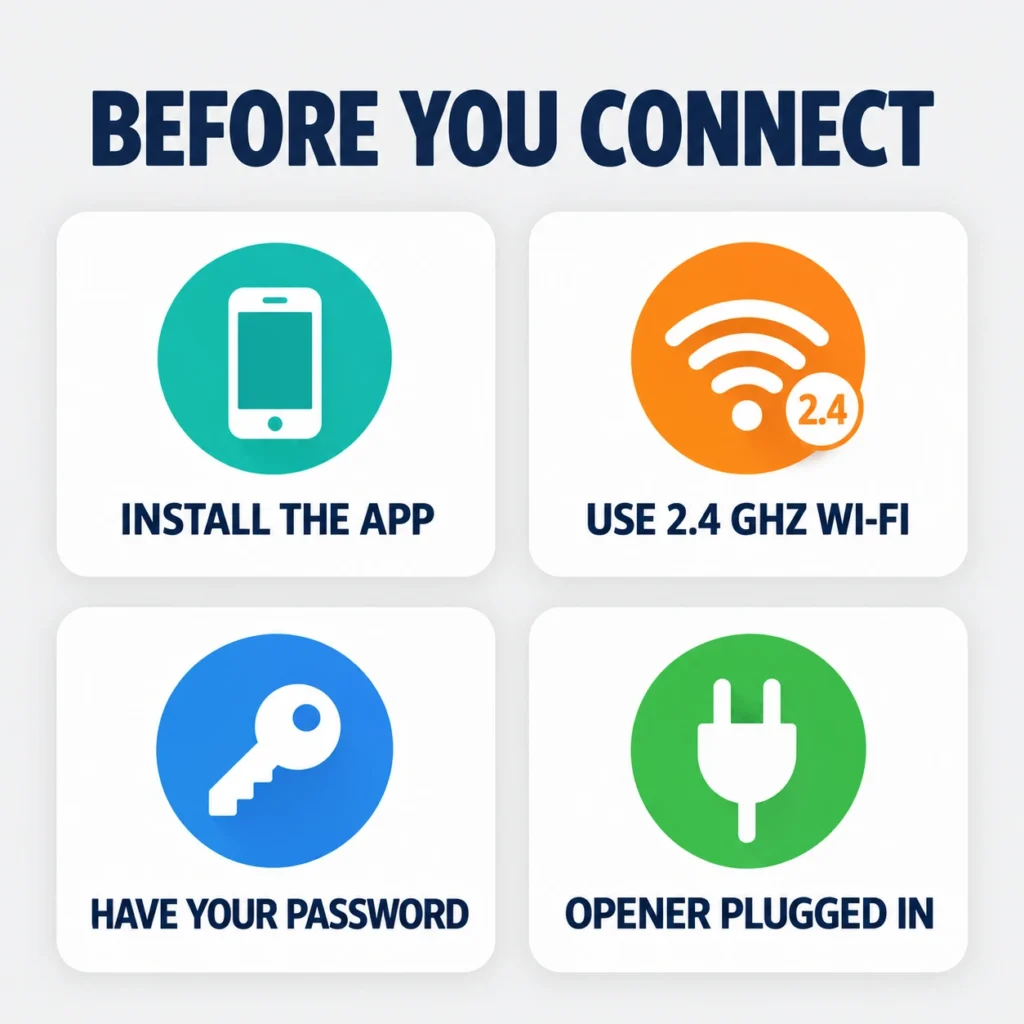
- The GDO System app by One World Technologies (Ryobi’s parent company) from the App Store or Google Play. The manual calls it the Ryobi Garage Door Opener Module System app.
- Your home Wi-Fi name and password.
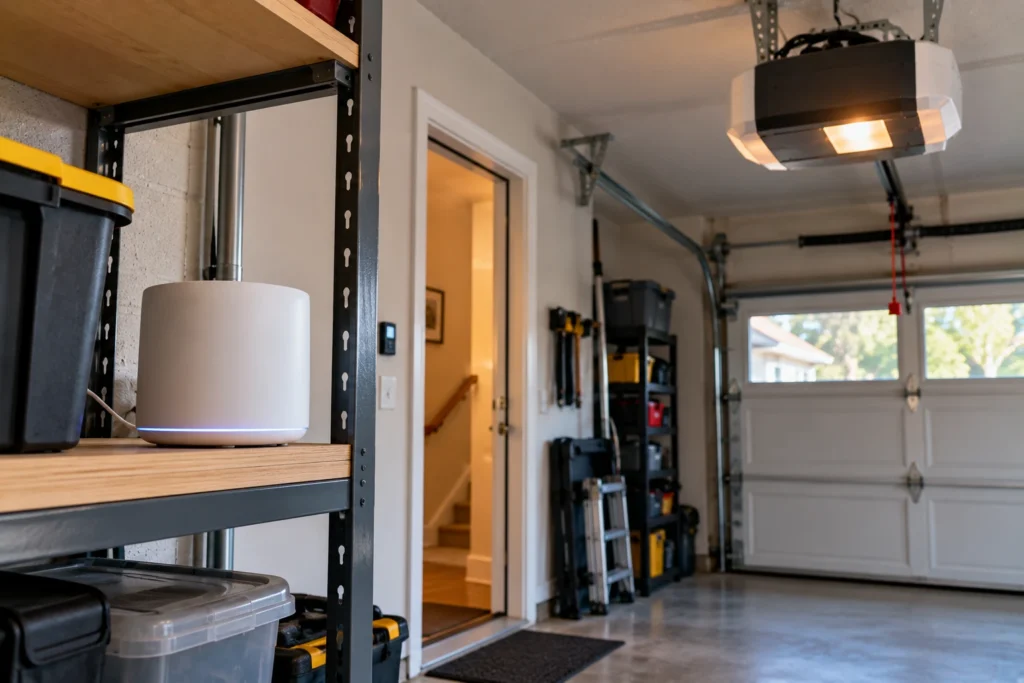
- A 2.4 GHz network. If your router combines 2.4 and 5 GHz under one name, turn on a separate 2.4 GHz network for setup.
- The opener plugged in and working from the indoor keypad.
The app allows one login per installation. If several people need phone access, they’ll have to share that login, so use a strong password you’re happy to share.
How to Connect Your Ryobi Opener to Wi-Fi
The whole process takes about 10 minutes. Stand in or near the garage so your phone is close to the opener during setup.
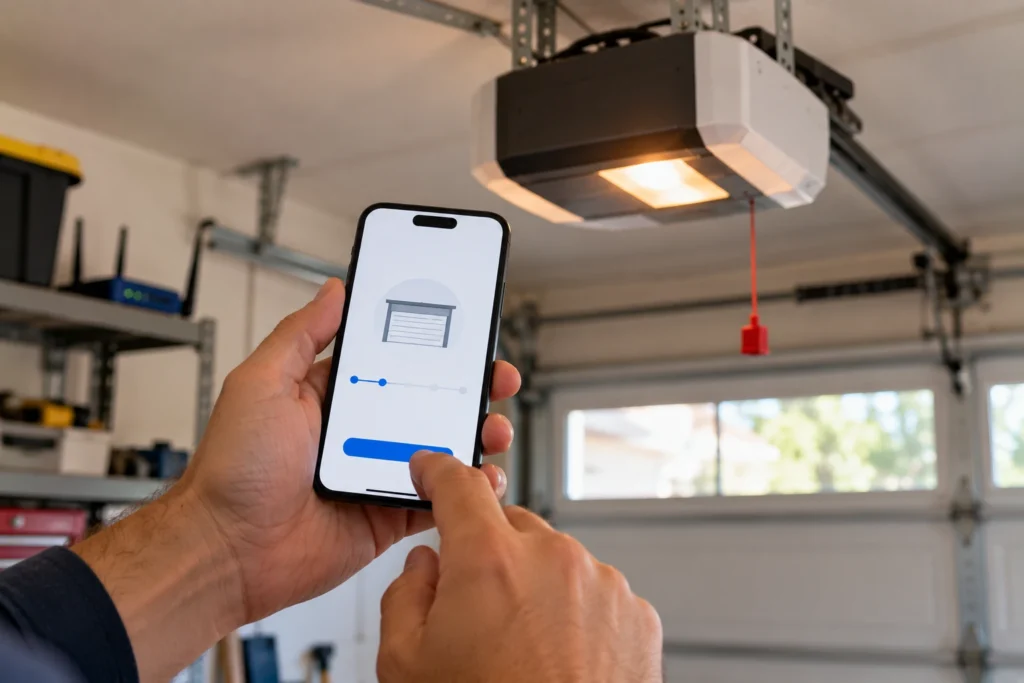
- Install the GDO System app and create an account.
- Choose the option to add a new device or garage door opener.
- Follow the app’s on-screen instructions to put the opener into setup mode.
- When the app asks, pick your 2.4 GHz home network and enter the password exactly, including capital letters.
- Wait for the app to confirm the opener is online, then open and close the door from the app while you watch it.
Owners who’ve reviewed the opener describe this step as quick once the network is right. When it fails, the cause is almost always the network band, the password or a weak signal in the garage.
Troubleshooting Wi-Fi Connection Problems
Work down this table before assuming the opener is faulty.
| Problem | Likely Cause | Fix | DIY Suitability |
|---|---|---|---|
| App can’t find your network | Phone or router on 5 GHz | Set up on a 2.4 GHz network | Safe for DIY |
| Setup fails after entering password | Password typed wrong | Re-enter it carefully; watch for autocorrect | Safe for DIY |
| App shows the opener offline | Weak signal, router change or power cut | Restart opener; add a mesh node or extender near the garage | Safe for DIY |
| App connects but won’t move the door | Opener in lock (vacation) mode | Press LOCK on the indoor keypad to unlock | Safe for DIY |
| App keeps logging you out or crashing | App reliability | Reinstall the app or use a third-party controller | Safe for DIY |
Changing Routers or Resetting the Connection
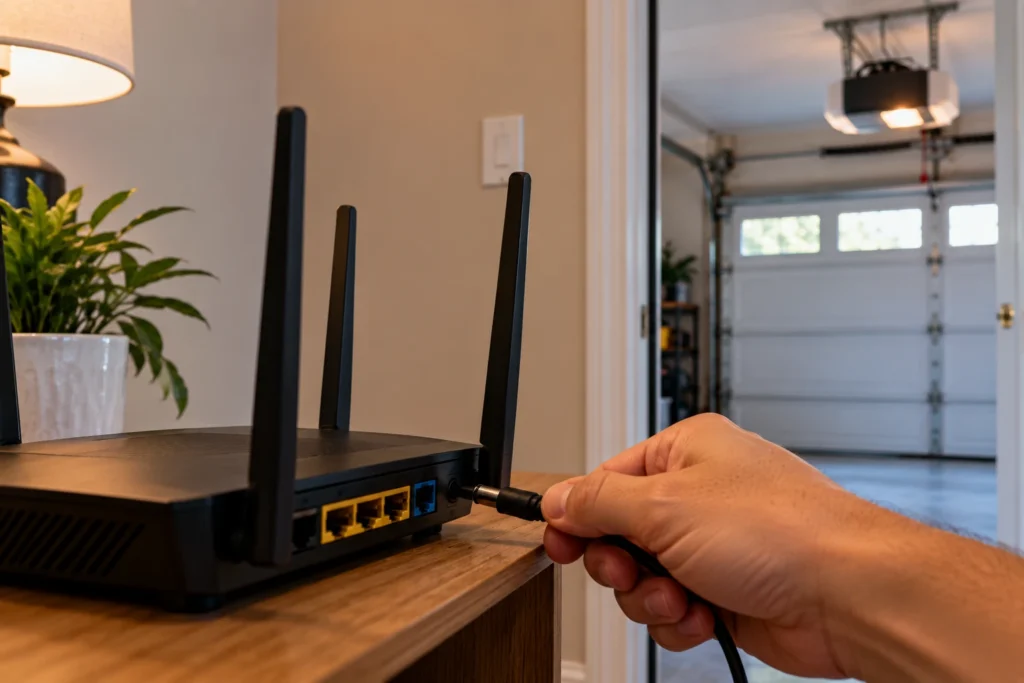
If you change your router, network name or password, the opener can’t reconnect on its own. Remove the opener from the app and add it again on the new network. If the app can’t see it, unplug the opener for 30 seconds to restart it and try again.
Selling the house or handing the opener over? Remove it from your app account and clear the remotes. Our Ryobi reset guide covers both.
What the App Can and Can’t Do
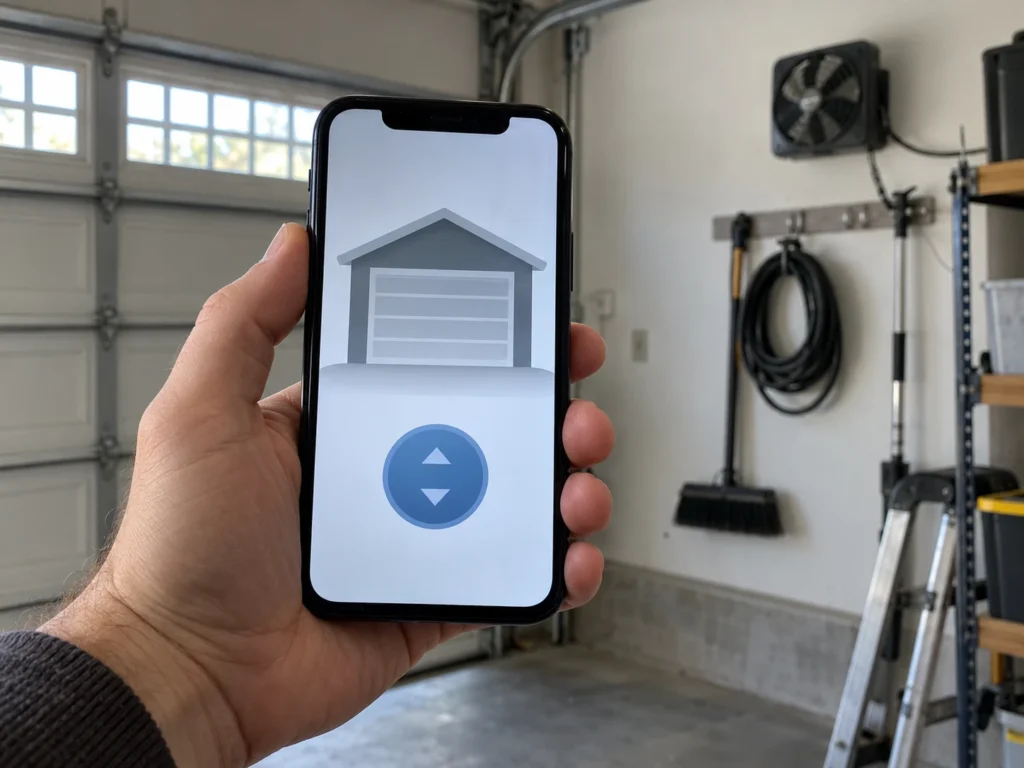
Once connected, you can open and close the door from anywhere and check its status. The app also controls the GD200’s add-on modules plugged into its module ports, and it can lock or unlock the opener. According to the manual, a locked opener ignores remotes and the outdoor keypad and can only be unlocked from the indoor keypad or the app.
Ryobi never added official Alexa or Google Assistant support that we could find. Our guide on whether the Ryobi opener works with Alexa covers the workarounds.
Should You Rely on the Ryobi App?
Be cautious. Ryobi has discontinued its garage door openers. The GDO System app’s last App Store update was in 2021, its rating is low, and owner reviews describe dropped connections and repeated logouts. It may keep working for years, but there’s no promise it will.
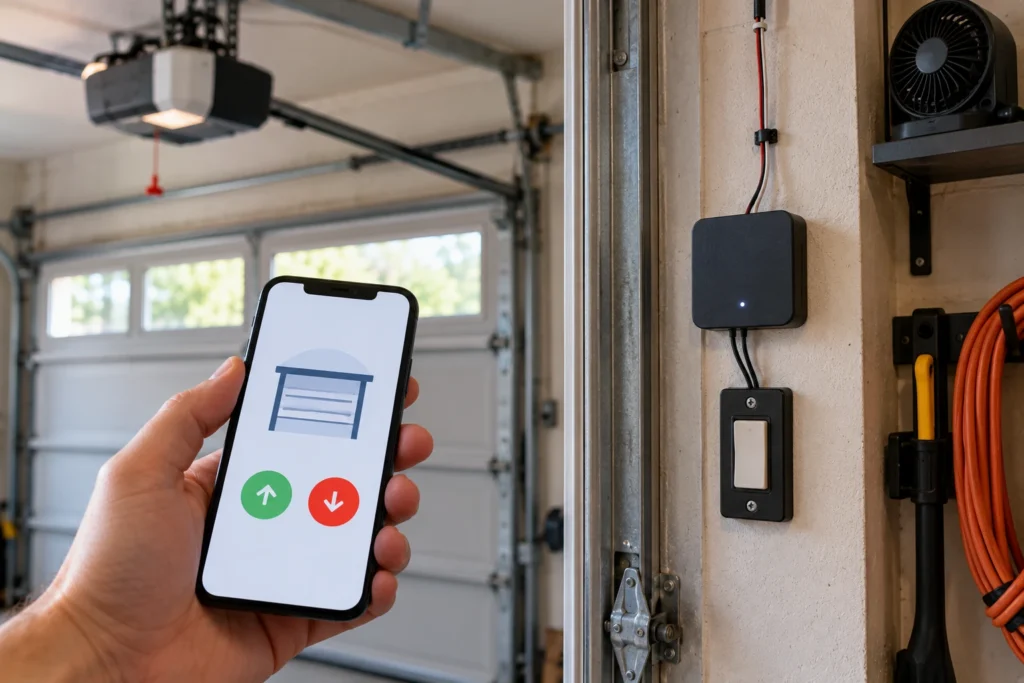
In our experience helping Ryobi owners, the more dependable route to phone control is a third-party smart controller wired to the opener’s wall-button terminals, many of which also work with Alexa and Google. Our guide to the best WiFi and Bluetooth smart garage door openers compares them. Your remotes, keypads and wall control keep working either way, because they don’t use Wi-Fi.
Frequently Asked Questions
What app does the Ryobi garage door opener use?
It uses the GDO System app from One World Technologies, Ryobi’s parent company. The manual calls it the Ryobi Garage Door Opener Module System app. It’s separate from Ryobi’s main tools app.
Is there a Wi-Fi button on the Ryobi opener?
Several online guides say to hold a Wi-Fi button for about 5 seconds, but we couldn’t confirm one in the GD200 operator’s manual, which lists the PROGRAM, UP, DOWN and SET buttons behind the console door. The app tells you how to put your opener into setup mode, so follow its prompts.
Does the Ryobi opener work with 5 GHz Wi-Fi?
No. Use a 2.4 GHz network. If your router combines both bands under one name, set up a separate 2.4 GHz network for the opener.
Can more than one person use the Ryobi app?
The app allows one login per installation, so household members have to share the same account to use their phones.
Does the Ryobi opener work without Wi-Fi?
Yes. Car remotes, the indoor keypad, the outdoor keypad and HomeLink in your car all work without Wi-Fi. You only lose phone control and status checks.
Why does my Ryobi app say the opener is offline?
The opener has lost its connection, usually after a router change, a power cut or a weak signal. Restart the opener, check it’s on 2.4 GHz, and re-add it in the app if it doesn’t come back.
Related Guides
For other Ryobi guides, see Ryobi Garage Door Opener Troubleshooting, How to Reset a Ryobi Garage Door Opener, Ryobi Garage Door Opener Discontinued and Ryobi Garage Door Opener Recall.
For the official manual, see the Ryobi GD200 operator’s manual.