
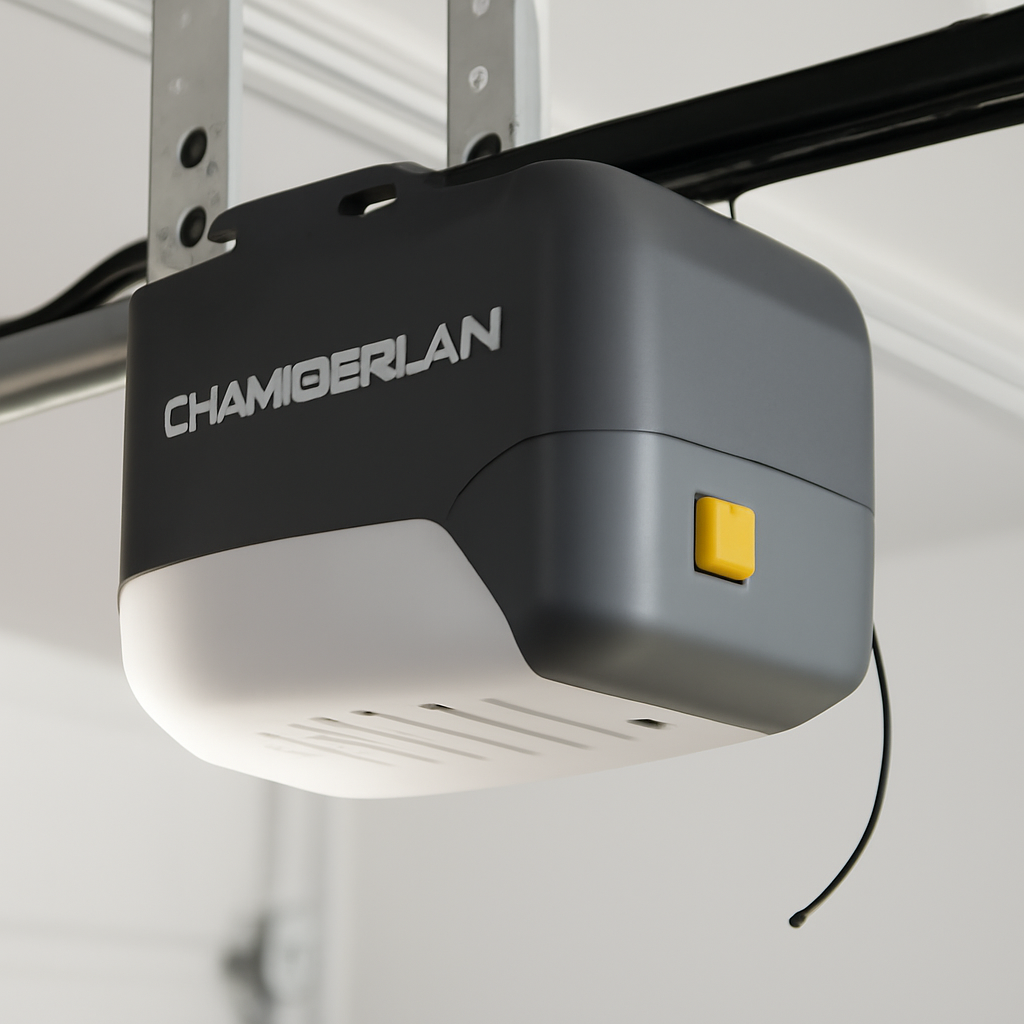
The Learn button on a Chamberlain garage door opener is located on the back or side panel of the motor unit — the box mounted to your garage ceiling. Depending on your model, it’s either yellow, purple, orange, or green, and it’s always near the antenna wire and the light socket.
Finding it takes about 30 seconds if you know where to look. This guide covers every Chamberlain model variation, what each button color means, and exactly what to do once you find it.
Quick Answer
Short Answer: The Learn button on a Chamberlain garage door opener is on the back or side of the motor unit, usually next to a small LED indicator light. It’s color-coded by frequency — yellow means 315 MHz, purple means 390 MHz, and orange means 315 MHz with an extra security feature called Security+ 2.0. Press and release it to start programming a remote or keypad.
Where Exactly Is the Learn Button on a Chamberlain Opener?
Every Chamberlain opener has the Learn button in roughly the same place: on the rear or side panel of the motor unit, close to where the antenna wire hangs down. It’s a small square or round button — about the size of a fingertip — with an LED indicator next to it.
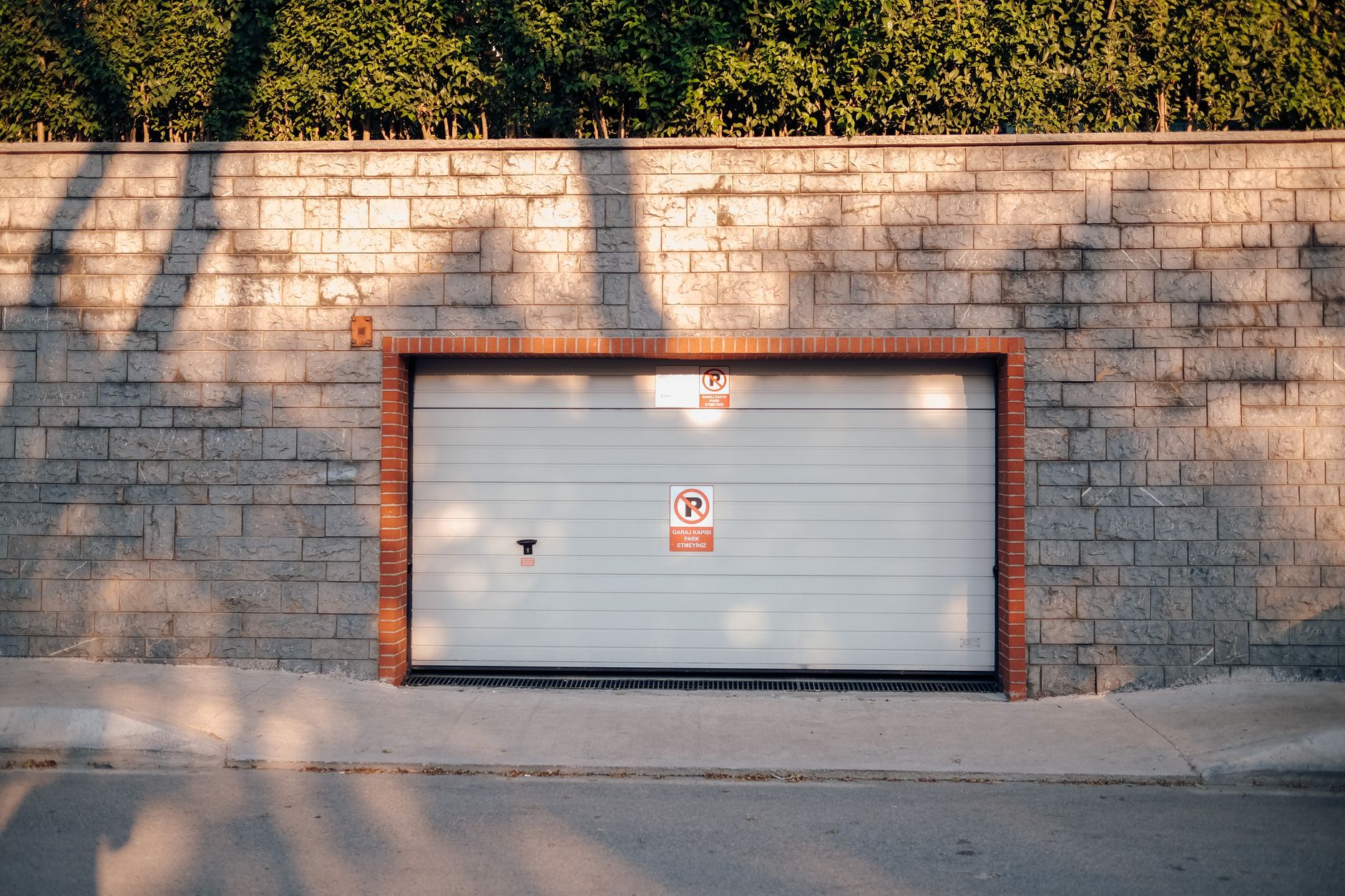
To find it, stand directly under the opener and look at the back face of the unit (the side facing the wall behind the door). You’ll see the antenna wire, the light bulb cover, and near those, the Learn button.
On some models, it’s on the side panel instead of the back. If you’re not seeing it from below, look at both sides of the motor housing before assuming it’s hidden.
Learn Button Color by Chamberlain Model
The button color tells you the radio frequency your opener uses. This matters when you’re buying a replacement remote — you must match the frequency to get the remote to work.

| Button Color | Frequency | Typical Models | Compatible Remotes |
|---|---|---|---|
| Yellow | 315 MHz | WD832KEV, WD1000WF, older models | 953EV, 956EV, 955EV |
| Purple | 390 MHz | WD832, WD822, WC20 series | 373P, 374P, 375P |
| Orange | 315 MHz (Security+ 2.0) | B1381, B2405, B6765, HD950WF | 940EV, 950EV series only |
| Green | 390 MHz | Older pre-2005 models | 371LM, 372LM |
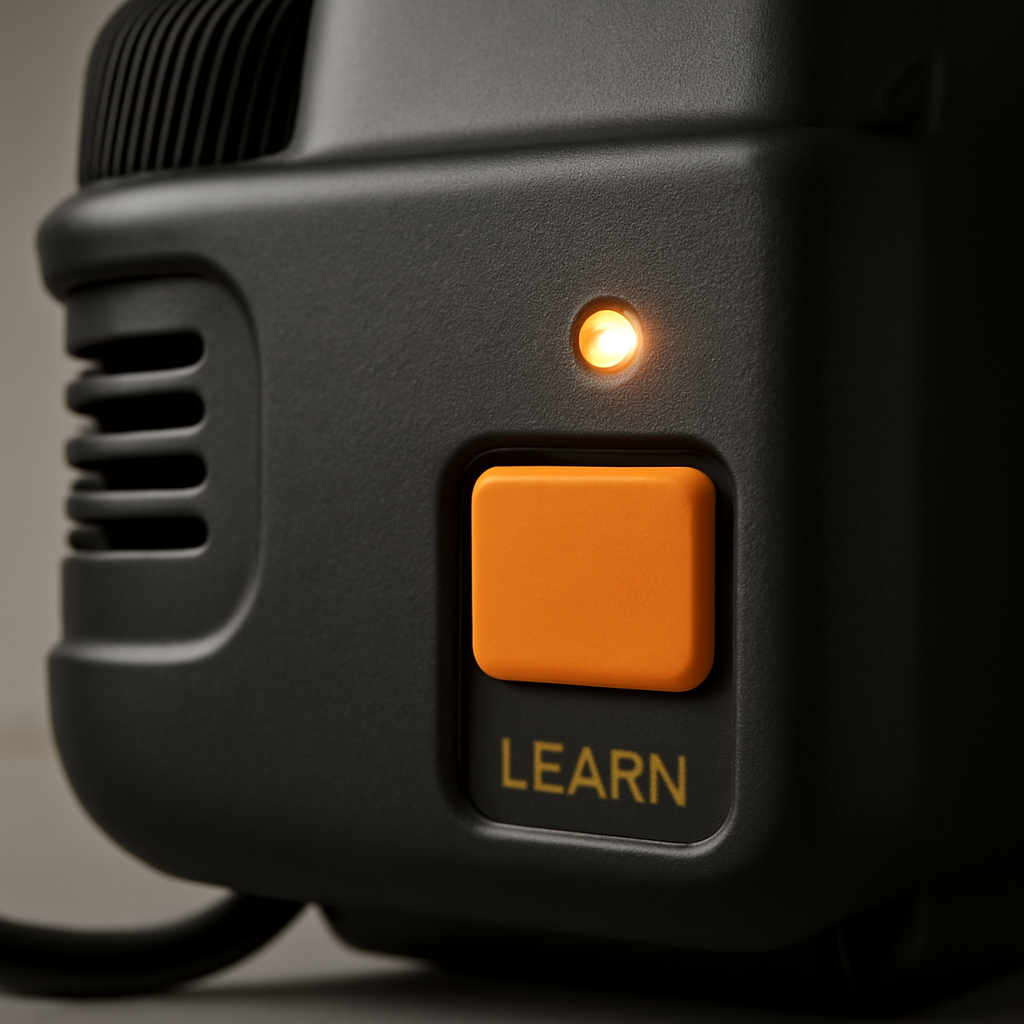
The orange button models use Chamberlain’s Security+ 2.0 technology, which uses rolling codes — a new code every time the remote is pressed. These are the most secure and only work with Security+ 2.0-compatible accessories.
How to Use the Learn Button to Program a Remote
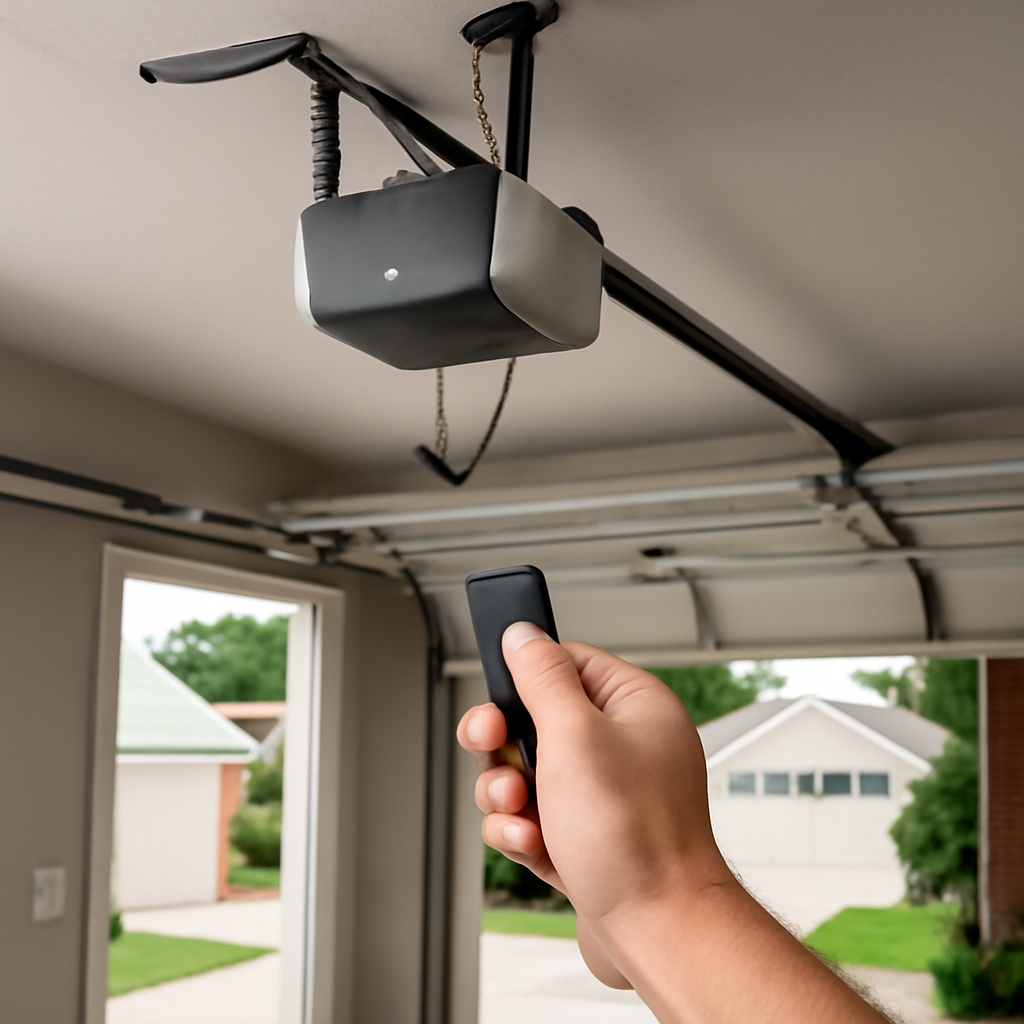
Once you’ve found the Learn button, programming any Chamberlain remote takes under a minute. Here’s the exact process:
- Press and release the Learn button. Don’t hold it down — holding for 6+ seconds erases all programmed remotes.
- The LED next to the button will glow solid for 30 seconds.
- Within those 30 seconds, press and hold the button on your remote that you want to program.
- Keep holding until the opener light blinks twice or you hear two clicks from the motor unit.
- Test the remote immediately. If it works, programming is complete.
If nothing happens, the 30-second window may have expired. Start over from Step 1. The most common mistake is pressing the remote too slowly after pressing Learn — move quickly but don’t rush the hold.
For keypads and the myQ app, the same Learn button starts the process, but the exact steps differ by accessory. See our full guide on programming a garage door keypad without an Enter button for step-by-step instructions that apply to Chamberlain models too.
What If I Can’t Find the Learn Button?
A few situations make the Learn button hard to find or unavailable:
The opener has a wall-mounted control panel covering it. On some Chamberlain models, the Learn button is located on the back of the wall-mounted Smart Control Panel (part 880LMW) rather than on the motor unit itself. Look at the back of your wall control, not just the ceiling unit.
The opener is very old (pre-1993). Older Chamberlain and LiftMaster openers used DIP switches instead of a Learn button. If you see a row of small black switches inside the motor unit cover, you have a DIP switch system. You program remotes by matching the switch pattern rather than pressing a button.
The opener shows no button at all. If you’ve checked every surface of the motor unit and see nothing, your opener may be a Chamberlain model that uses a Smart Hub or myQ system where programming is done through the app instead of a physical button.
How to Erase All Programmed Remotes
If you’ve moved into a home with an existing Chamberlain opener, or if you want to clear all remotes before selling the house, hold the Learn button for 6 seconds until the LED blinks. This erases every programmed remote, keypad, and myQ device from memory. You’ll need to reprogram everything from scratch afterward.
This is also the fix when you’ve hit the opener’s memory limit. Chamberlain openers store up to 40 devices. Clearing and reprogramming only the remotes you actually use solves this. Learn more in our guide on how many remotes you can program to a garage door opener.
For official programming guides for specific Chamberlain models, Chamberlain’s support page has downloadable manuals for every opener they’ve made.
Once you find the Learn button, you may want to program a keypad as well — see our guide on resetting a Chamberlain keypad without the original code.
Frequently Asked Questions
Where is the Learn button on a Chamberlain B6765?
The B6765 has an orange Learn button on the back panel of the motor unit, next to the antenna wire. It uses Security+ 2.0 technology at 315 MHz. To program a remote, press and release the orange button, then within 30 seconds hold your remote button until the opener lights blink twice. Only Security+ 2.0-compatible remotes (940EV, 950EV series) will work with this model.
What does the Learn button do exactly?
The Learn button puts your opener’s receiver into programming mode for 30 seconds. During that window, any remote, keypad, or myQ-compatible device that sends a signal will be stored in the opener’s memory. After 30 seconds, programming mode closes automatically. It’s the gateway for adding or re-adding any wireless accessory to the opener.
Can I program a Chamberlain remote without the Learn button?
Not on most models. The Learn button is required for standard remote programming. However, if your opener has a Smart Control Panel (880LMW) or myQ Wi-Fi module, you may be able to add devices through the Chamberlain app instead. Very old DIP switch models are programmed by matching switch patterns — no button needed.
Why won’t my Chamberlain remote program after pressing Learn?
The most common reason is the 30-second window expired before you pressed the remote, or you held the Learn button too long and accidentally erased all devices. Try again: press and quickly release Learn, then immediately hold your remote button until you see the lights blink. If it still fails, check that your remote battery is fresh and that the remote frequency matches your Learn button color.
Is the Learn button on Chamberlain and LiftMaster the same?
Yes. Chamberlain and LiftMaster are both made by the same parent company (Chamberlain Group) and use identical motor units under different brand names. The Learn button location, color coding, and programming procedure are the same across both brands. A LiftMaster remote will program to a Chamberlain opener as long as the frequencies match.
Related Guides
For other Chamberlain guides, see Why is My Chamberlain Garage Door Opener Beeping? and Best Chamberlain Garage Door Opener.