
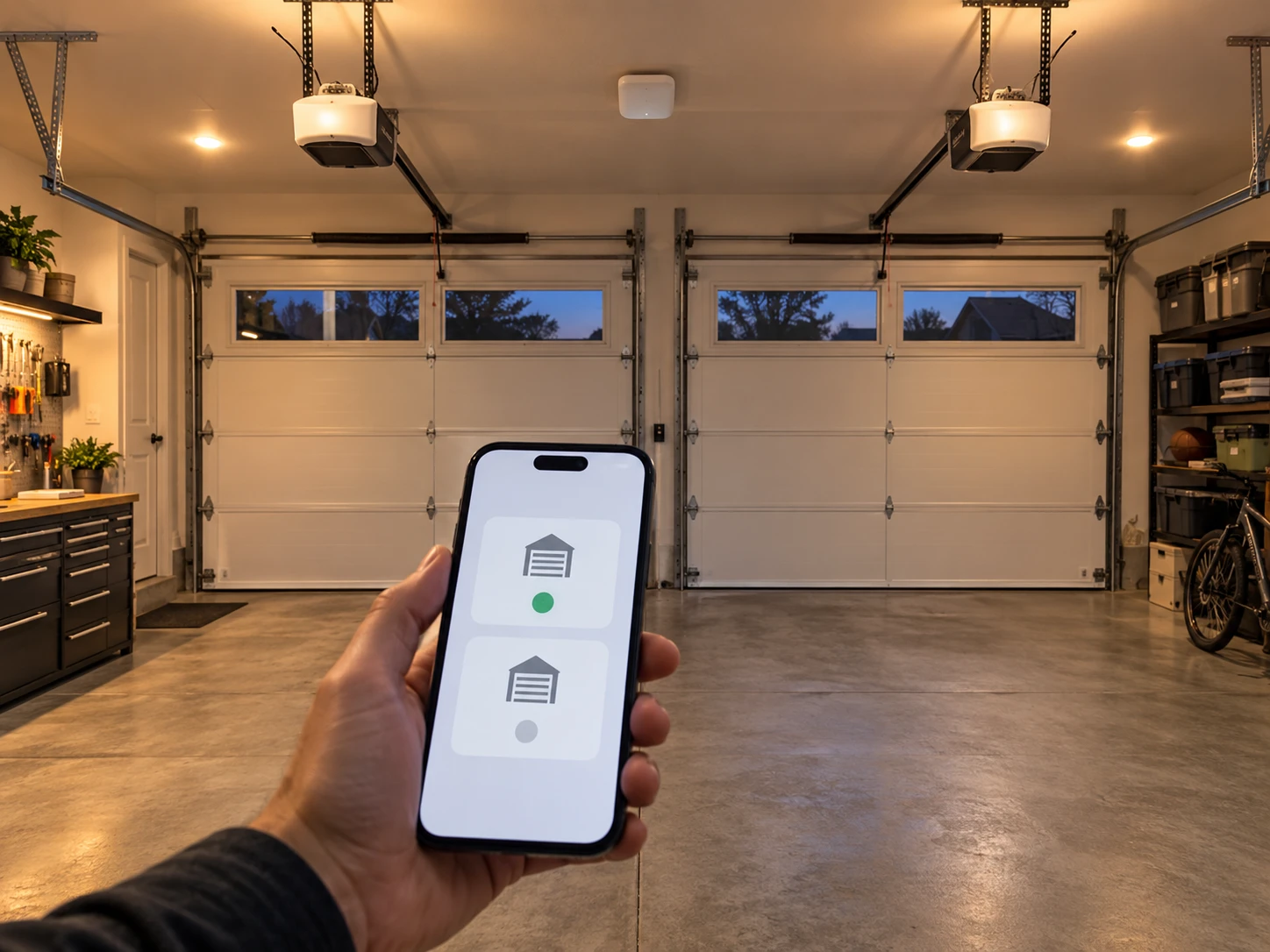
Got two garage doors and want both in the myQ app? Good news: you don’t need a second account, and in many cases you don’t even need a second hub. One myQ Smart Garage Control can run two garage doors, and openers with built-in myQ Wi-Fi add straight into the same app.
The catch is that the right method depends on what hardware you already have. This guide covers all three setups, with the steps Chamberlain’s own support documents describe, plus the pairing problems people run into most.
Short Answer: If you use a myQ Smart Garage Control hub, buy one extra myQ door sensor (MYQ-G0402, about $20), mount it on the second door, and add the door in the myQ app. One hub controls up to two openers. If your second opener has built-in myQ Wi-Fi, just tap the plus sign in the app and add it as a new device. Either way, both doors end up in the same account.
In our experience helping homeowners set up smart garage control, most people overspend here by buying a second hub when a $20 sensor would have done the job.
Which myQ Setup Do You Have?
Look at your first door’s myQ hardware before you buy anything. Your answer decides which method below you follow.
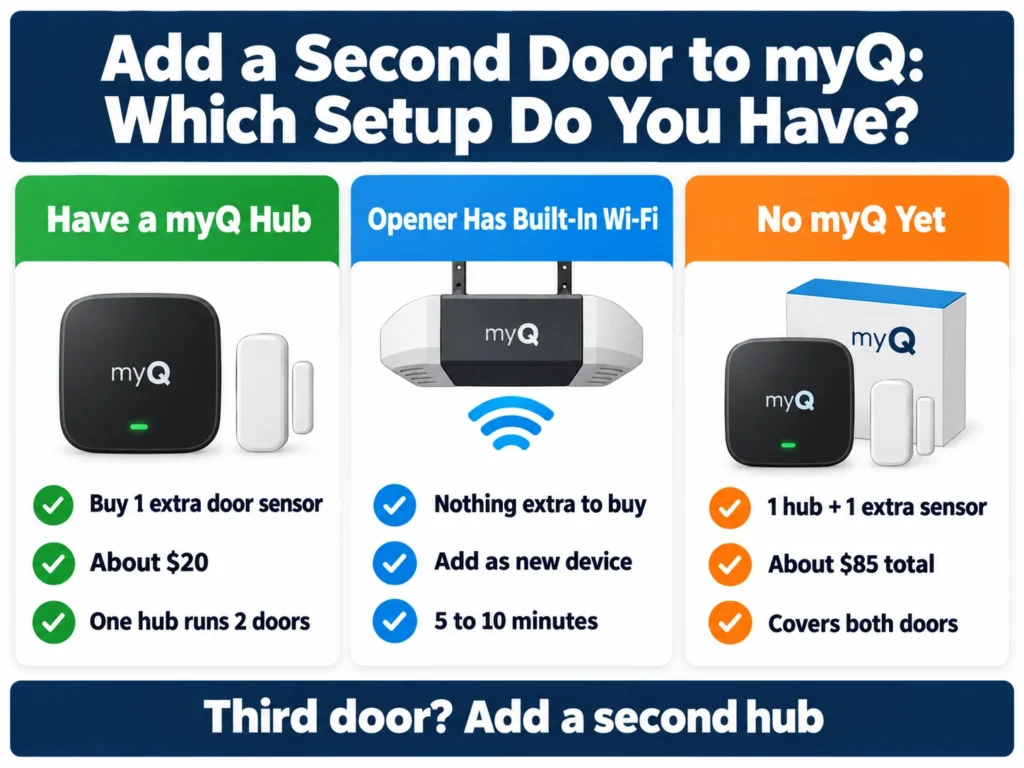
| Your Situation | What You Need for Door Two | Approx. Cost | Setup Time |
|---|---|---|---|
| First door uses a myQ Smart Garage Control or Smart Garage Hub | One additional myQ door sensor (MYQ-G0402) | About $20 | 10 to 15 minutes |
| Second opener has built-in myQ Wi-Fi | Nothing extra; add it as a new device | $0 | 5 to 10 minutes |
| Neither door has myQ yet | One Smart Garage Control plus one extra door sensor | About $65 plus $20 | 20 to 30 minutes |
| Third or fourth door | A second hub (each hub tops out at two doors) or built-in myQ openers | About $65 per hub | 15 to 20 minutes |
Not sure what you have? A small white or gray square box on the garage ceiling with a separate sensor stuck to the top of the door is a Smart Garage Control or Smart Garage Hub. If there’s no hub and the opener itself has a myQ logo and a yellow learn button, the opener probably has myQ built in. Our guide on where to find the learn button helps if you need to check.
Method 1: Add a Second Door to Your Existing Hub
This is the most common situation. Chamberlain states that each Smart Garage Control or Smart Garage Hub can control up to two garage door openers, so all you add is a second door sensor. The Chamberlain MYQ-G0402 door sensor works with the Smart Garage Control and with both earlier Smart Garage Hub generations, according to Chamberlain.
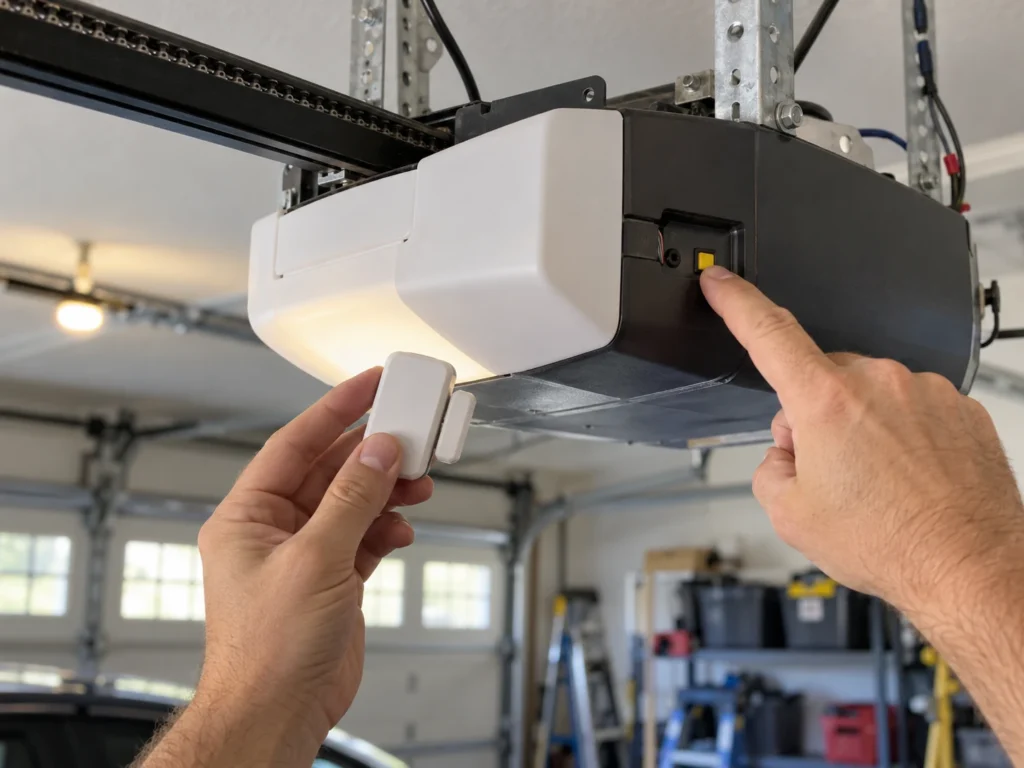
- Make sure the second opener is compatible: most major brands made after 1993 with working photo-eye safety sensors are supported, including Chamberlain, LiftMaster, Craftsman, Genie, Overhead Door, Guardian, Stanley and Wayne Dalton.
- Open the myQ app, go to the settings or device management menu, and tap the plus sign to add a device.
- Choose the garage door option and select your existing hub when the app asks which hub to use.
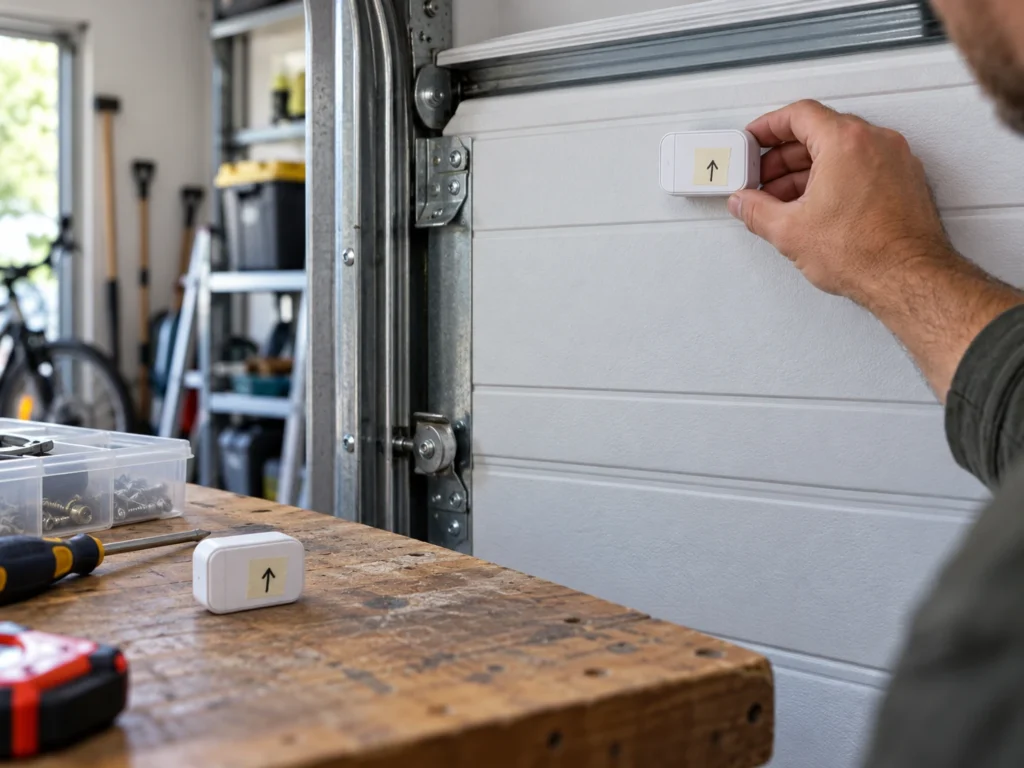
- Activate the new door sensor as the app instructs (usually by pulling the battery tab) and mount it on the top panel of the second door.
- When prompted, walk to the second opener and press its learn button once so the hub can learn it. The app tells you when pairing succeeds.
- Test the door from the app while standing in the garage, then give it a clear name.
The hub must be close enough to talk to both openers, so if your doors are far apart, mount the hub somewhere between them. If a remote also opens both doors at once after this, our guide on a garage door remote that opens both doors explains why.
Method 2: Second Opener Has Built-In myQ Wi-Fi
Many current Chamberlain and LiftMaster openers, like the Chamberlain B4613T, have myQ Wi-Fi inside the motor unit. Each one connects to your home network on its own, so there’s no hub and no door sensor to buy.
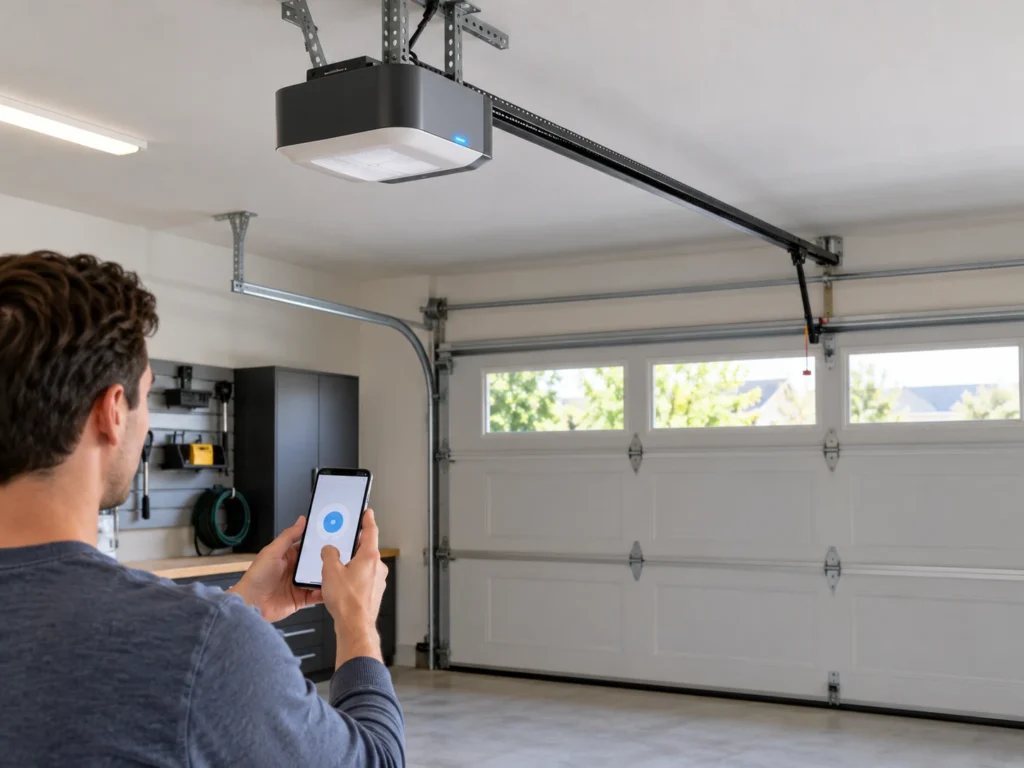
- In the myQ app, open the settings or device management menu and tap the plus sign.
- Choose the garage door opener with built-in Wi-Fi option.
- Put the opener into Wi-Fi setup mode: press and release the yellow learn button on the motor unit two or three times until it beeps and a blue light flashes. You have about 20 minutes to finish.
- Follow the app prompts to connect the opener to your 2.4 GHz home Wi-Fi.
- Name the door and test it.
Chamberlain advises clearing an opener’s old Wi-Fi settings first if it was ever set up on another account, which is common when you buy a house that already has a smart opener. If you’re shopping for a second opener anyway, our list of the best garage door openers with Wi-Fi compares myQ and non-myQ options.
Method 3: Starting From Scratch With Two Doors
If neither door has myQ yet, the cheapest route is one myQ Smart Garage Control, which comes with one door sensor, plus one extra MYQ-G0402 sensor for the second door. That covers both doors for roughly $85 total at Chamberlain’s list prices.
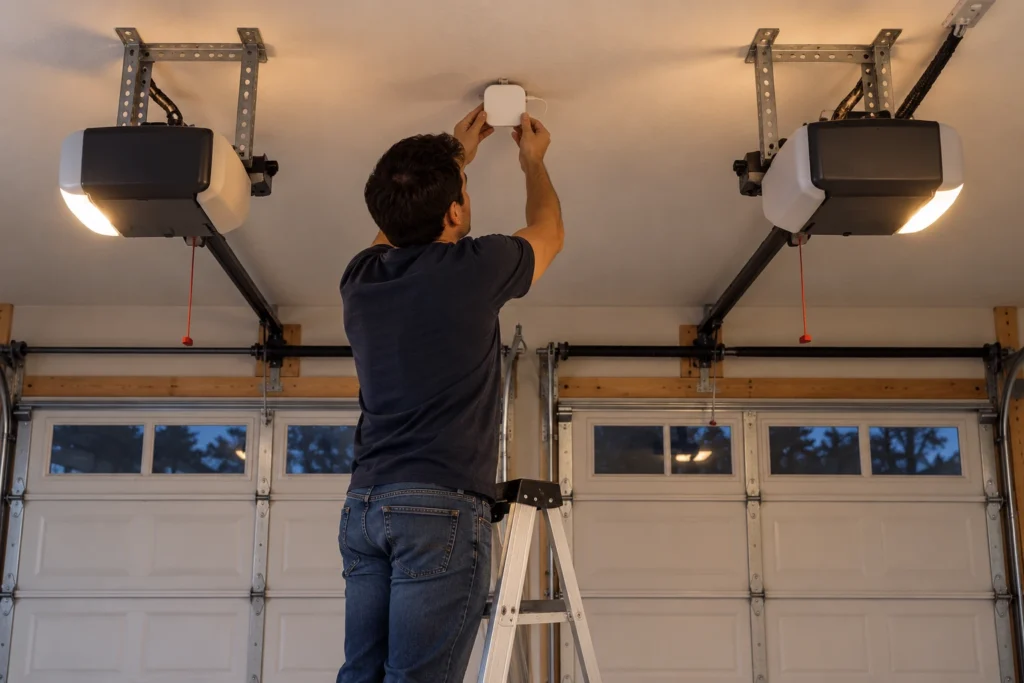
- Mount the hub on the garage ceiling in a spot with a good Wi-Fi signal, within range of both openers.
- Download the myQ app, create an account, and add the Smart Garage Control. The hub uses Bluetooth to make setup easier.
- Install the included door sensor on the first door and pair the first opener by pressing its learn button.
- Add the second door using the steps in Method 1.
Chamberlain’s install tips call for a 2.4 GHz Wi-Fi signal of at least 75% strength where the hub is mounted. If your garage is a dead zone, add a Wi-Fi extender before you start. If you’d rather avoid myQ entirely, see our guide to using a garage door opener app without hardware for what is and isn’t possible.
Name, Share and Control Both Doors
Once both doors are in the app, a few settings make day-to-day use much easier.
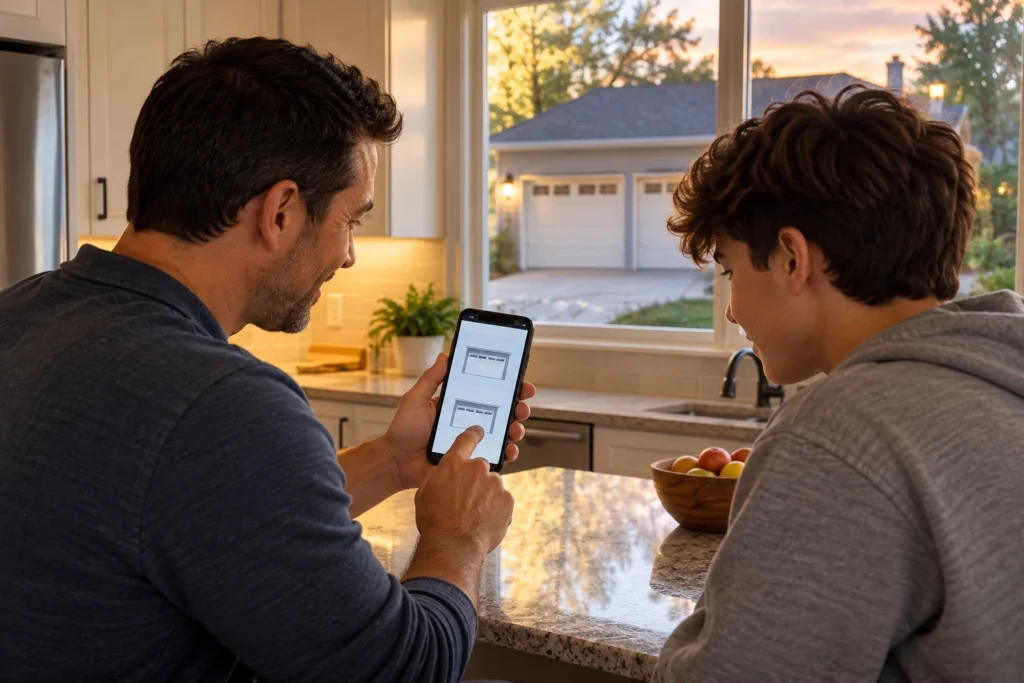
- Rename each door right away. Use names like “Left Door” and “Right Door” so nobody opens the wrong one.
- Share access instead of sharing your password. myQ Users lets one account hold up to 16 people: 1 owner, 2 co-owners and 13 household users, each with their own login. Guests can get temporary Quick Pass access.
- Expect a warning before remote closing. When you close a door from the app, the hub or opener beeps and flashes its light before the door moves. That’s a required safety warning, not a fault.
- Voice assistants are limited. myQ has no native Alexa skill, and Chamberlain ended Google Assistant support in 2023. Amazon Key in-garage delivery is still supported. If voice control matters to you, see our guide to the best Alexa-enabled garage door openers.
- Video features cost extra. Live alerts and app control are free, but video recording on camera-equipped myQ openers needs a paid plan.
Troubleshooting: Second Door Won’t Pair or Goes Offline
Most pairing failures come down to Wi-Fi, the learn button, or an opener the hub doesn’t support.
| Problem | Likely Cause | Fix | DIY Suitability | Safety Risk Level |
|---|---|---|---|---|
| Second door never appears in the app | Added as a new hub instead of a door on the existing hub | Start over and pick the existing hub when the app asks | Safe for DIY | Low |
| Learn button press doesn’t register | Pressed too long, or pressed a remote instead of the motor | Press and release the motor’s learn button once, quickly | Safe for DIY | Low |
| Opener with built-in Wi-Fi won’t connect | 5 GHz network or weak signal | Connect to 2.4 GHz and check signal in the garage | Safe for DIY | Low |
| Door shows the wrong open or closed status | Door sensor mounted on the wrong door or low battery | Check sensor placement and replace its battery | Safe for DIY | Low |
| Hub can’t operate the second opener | Opener made before 1993 or has no safety sensors | Upgrade the opener; see compatibility list | Professional for install | Medium |
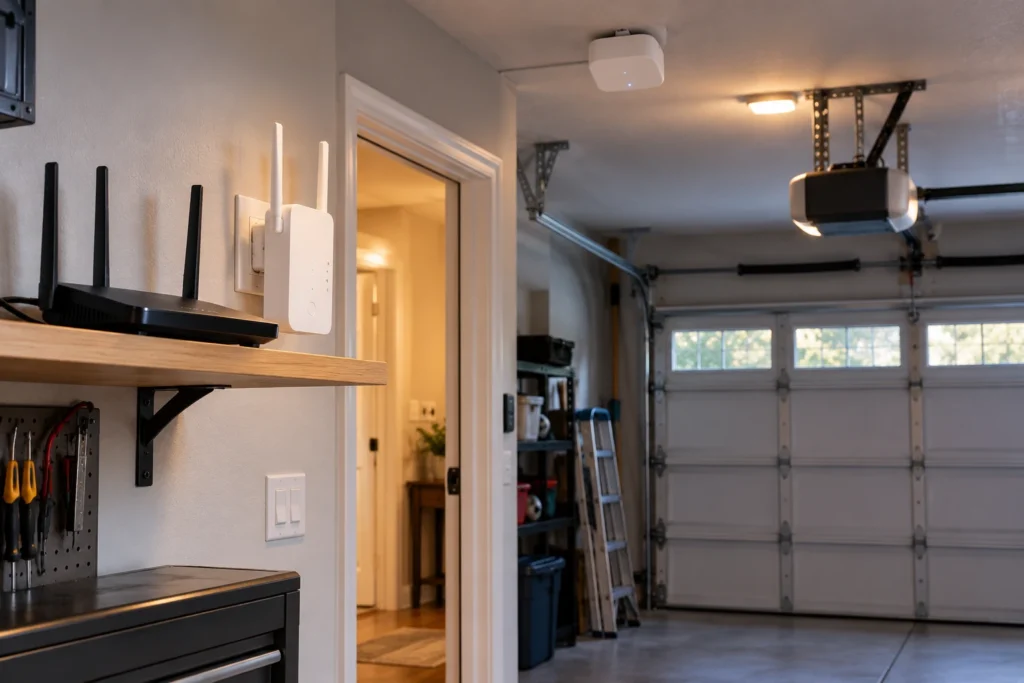
| Door goes offline often | Hub too far from router or between openers | Move hub, add a Wi-Fi extender | Safe for DIY | Low |
Two more habits help: mount the hub away from metal shelving, ductwork and the opener rails, which all weaken the signal, and install firmware updates when the app offers them, since updates often fix connection drops. If the remote for the second door also stopped working after setup, our LiftMaster remote not working guide walks through reprogramming. And if you’re wondering whether a second opener is worth it at all, read do I need two garage door openers.
Common Mistakes to Avoid
These are the errors that cost people money or an evening of frustration.
- Buying a second hub for door two. One hub handles two doors; you only need another sensor.
- Adding a duplicate account. Everything belongs under one owner account. Invite family members as users instead.
- Putting the door sensor on the wrong door. The app pairs each sensor to a specific opener. Label the sensors before mounting.
- Skipping the 2.4 GHz check. myQ hardware won’t join a 5 GHz-only network.
- Testing from the house. Run the first open and close test while you can see the door, in case the wrong door responds.
Affiliate disclosure: As an Amazon Associate, we earn from qualifying purchases. This doesn’t change our recommendations or your price.
Frequently Asked Questions
Can one myQ hub control two garage doors?
Yes. Chamberlain says each Smart Garage Control or Smart Garage Hub can control up to two garage door openers. You need one additional door sensor for the second door.
Do I need a separate myQ account for the second door?
No. Add the second door to your existing account. Both doors show up together in the same app.
Can I mix a built-in myQ opener and a hub-controlled opener?
Yes. A Wi-Fi opener with myQ built in and an older opener running through a Smart Garage Control can live in the same myQ account side by side.
What if my second opener is a different brand?
That’s usually fine. The Smart Garage Control works with most major brands made after 1993 that have standard photo-eye safety sensors, including Genie, Overhead Door, Craftsman and Wayne Dalton.
How many garage doors can myQ control?
One account can hold many devices. Each hub covers two doors, so a three or four door garage needs a second hub or openers with myQ built in.
Can I control both doors with Alexa or Google?
Not directly. myQ doesn’t offer a native Alexa skill and dropped Google Assistant support in 2023. Use the myQ app, or choose an opener or controller that supports voice assistants natively.
How do I add another phone to myQ?
Don’t share your login. In the myQ app, open the Users section and invite the person by email. They create their own free myQ account, accept the invitation, and both doors appear on their phone. You can add up to 16 users, and you can remove anyone at any time.
Can I use myQ at two different homes?
Yes. Devices at different addresses can sit in the same myQ account because each hub or Wi-Fi opener connects through its own home network. If the second home belongs to someone else, have the owner invite you as a user, then switch between accounts in the app.
Will adding a second door change my first door’s settings?
No. As long as you add a new door rather than editing the existing one, the first door’s name, schedules and history stay as they are.
Related Guides
For more on smart and multi-door garage setups, see How to Get a Second Garage Door Opener, How Many Openers Can You Program to a LiftMaster?, Best Chamberlain Garage Door Opener, Best Wi-Fi and Bluetooth Smart Garage Door Openers, Best Garage Door Monitor and Meross Garage Door Opener Troubleshooting.
For official setup help, see Chamberlain’s guide to adding a device in the myQ app.