
“Reset” means different things on a Chamberlain garage door opener, and picking the wrong one can leave you reprogramming every remote and car button for nothing. Most people need one of four resets: erase the remotes and keypads, set the travel limits again, reconnect the Wi-Fi, or do a full factory reset. Here is how to tell which one you need and how to do it, using Chamberlain’s own instructions.
Short Answer: To erase all remotes and keypads on a Chamberlain opener, press and hold the Learn button on the motor unit until its LED goes out (about 6 seconds). To factory reset a Wi-Fi model with a yellow or white Learn button, hold the Learn button until the LED turns off, then do it twice more right away; three beeps confirm the reset. Changed your router or Wi-Fi password? Don’t factory reset: reconnect the opener in the myQ app instead. Door stopping short or reversing? Reprogram the travel limits, which also re-learns the force.
Last verified: October 31, 2026, against Chamberlain Group support articles on factory resets, remote programming and travel programming. How we research.
Which Reset Do You Need?
| Your problem | Reset to do | What it erases |
|---|---|---|
| Lost a remote, moved into a new home, or want to lock out old remotes | Erase remotes and keypads | All remotes, keypads and car buttons |
| Door stops before the floor, reverses, or opens too far | Reprogram travel limits | Only the open and close positions (force is re-learned) |
| New router or new Wi-Fi password | Reconnect Wi-Fi in the myQ app | Nothing else |
| Selling the house, taking over a used opener, or myQ Error 310 | Factory reset | Wi-Fi, myQ account link, remotes, keypads, HomeLink and myQ accessories |
| Forgot the keypad PIN | Keypad reset | See our Chamberlain keypad reset guide |
Unplugging the opener is not a reset. Chamberlain notes that travel limits and forces do not reset even if the opener is unplugged for a long time.
Reset 1: Erase All Remotes and Keypads
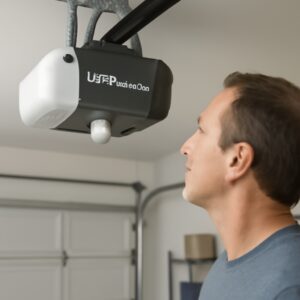
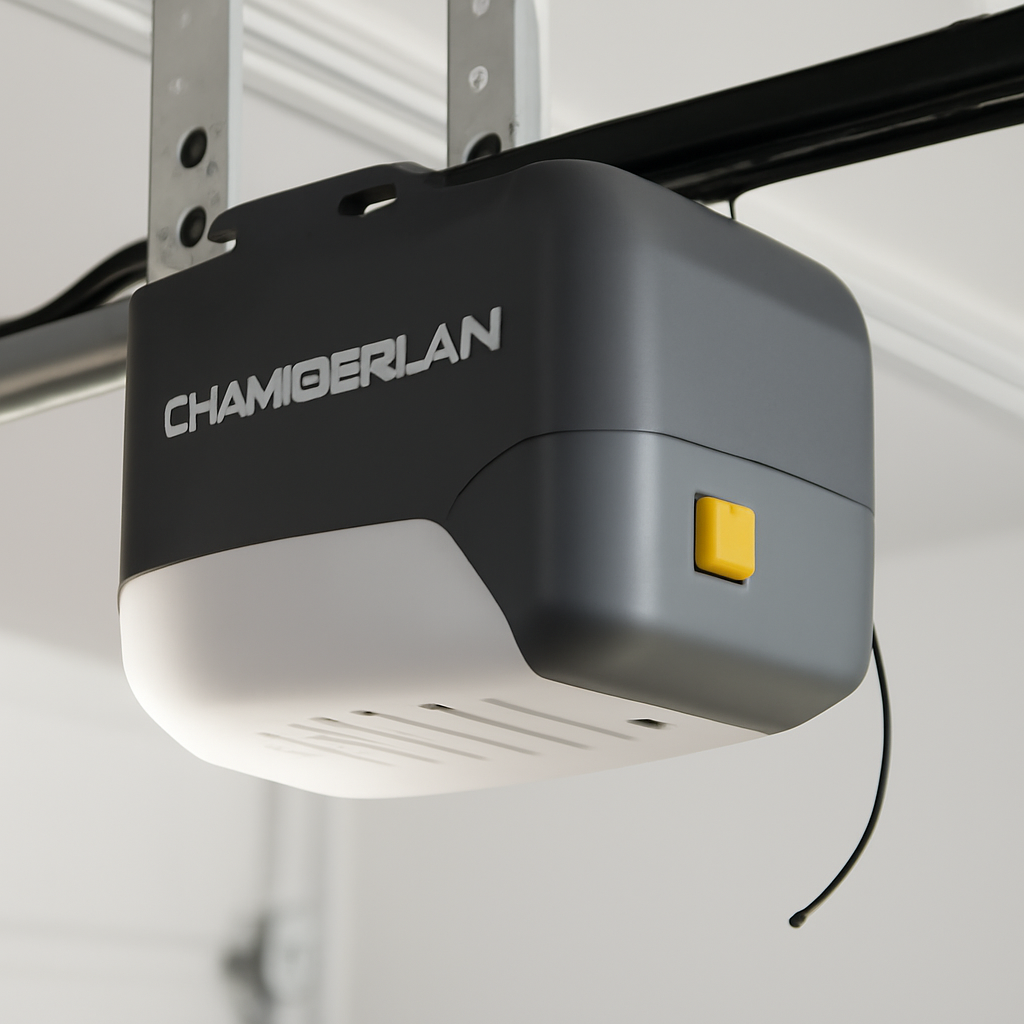
This clears every remote, keypad and car button from the opener’s memory, so nobody with an old remote can open your garage. The Learn button is on the motor unit, usually on the back or side near the antenna wire.
- Press and hold the Learn button. The LED next to it comes on.
- Keep holding until the LED goes out, about 6 seconds, then release.
- Program back each remote and keypad you want to keep: press and immediately release the Learn button, then within 30 seconds hold the remote button until the opener lights flash or you hear two clicks. Full steps are in our remote programming guide.
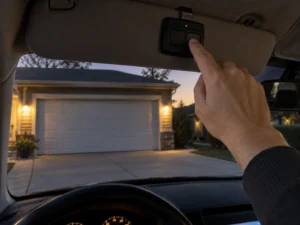
- Reprogram car buttons through the vehicle; Chamberlain points to HomeLink.com for that.
Be careful with the Learn button: a quick press starts programming, but holding it erases everything. Not sure where yours is? See where the Learn button is on a Chamberlain opener.
Reset 2: Reprogram the Travel Limits (and Force)
If the door stops before the floor, reverses, or opens too far, the travel limits need setting again. On Security+ 2.0 and myQ openers with an Adjustment button, the force is set automatically once you program the travel. Chamberlain’s sequence:
- Make sure the door is connected to the trolley.
- Press and hold the Adjustment button until the UP arrow flashes or you hear a beep.
- Use the arrows to move the door to the fully open position, then press and release the Adjustment button. The lights flash twice and the DOWN arrow flashes.
- Move the door to the closed position and press and release the Adjustment button. The lights flash twice and the UP arrow flashes.
- Press the UP arrow (the door opens), then the DOWN arrow (the door closes and the opener learns the force).
- Test the safety reversal: the door must reverse when it touches a 2×4 laid flat on the floor.
Models ending in “MC”, openers with a Step Saver Set Up sticker, and older openers with adjustment screws use different steps; follow Chamberlain’s travel and force guide for your model. Chamberlain warns never to use force adjustments to make up for a door that binds or sticks.
Reset 3: New Router or Wi-Fi Password? Reconnect, Don’t Reset
Chamberlain specifically says not to factory reset a myQ device because you changed your Wi-Fi password, replaced your router, the device shows offline, or you forgot your myQ password. A factory reset would wipe your remotes and car buttons for no reason. Instead, use the myQ app to reconnect the opener to the new network: in Settings, open Devices, choose the opener and follow the Wi-Fi setup steps (Chamberlain’s “Reconnect to myQ after changing your router” article walks through it).
Reset 4: Factory Reset a Chamberlain Wi-Fi Opener
Use this when you’re moving out and leaving the opener, taking over a used one, or the myQ app shows Error 310 (the opener is still linked to someone else’s account). Chamberlain warns that a factory reset erases all programmed remote controls, keyless entry devices, myQ devices and HomeLink connections, and removes the opener from the myQ account.
Yellow or White Learn Button
- Press and hold the Learn button. The LED turns on.
- Keep holding until the LED turns off, then release.
- Immediately press and hold it again until the LED turns off.
- Immediately press and hold it a third time until the LED turns off.
- Three beeps in a row mean the reset worked.
Other Learn Button Colors
Press and hold the Learn button until its LED turns off, then release. (Older purple, red/orange and green button openers have no Wi-Fi, so this simply clears the stored remotes and keypads.)
If nothing happens, Chamberlain says to unplug the opener for 30 seconds, disconnect the backup battery too if it has one, restore power and try again slowly. Afterwards, set the opener up again in the myQ app and reprogram remotes, keypads and car buttons.
Using a Separate myQ Hub Instead?
If your opener connects through a myQ Smart Garage Hub or Control rather than built-in Wi-Fi, reset the hub, not the opener: hold the Settings (gear) button on the side of the hub until the blue LED blinks, release, then hold it again until the LED pauses and blinks or the hub beeps.
Frequently Asked Questions
How do I reset my Chamberlain garage door opener?
Decide what you need to reset first. To clear remotes, hold the Learn button until its LED goes out. To fix where the door stops, reprogram the travel. For a full factory reset on a yellow or white Learn button Wi-Fi model, hold the Learn button until the LED turns off three times in a row and listen for three beeps.
Does unplugging a Chamberlain opener reset it?
No. Chamberlain says travel limits and forces don’t reset when the opener is unplugged, even for a long time, and stored remotes stay too. A power cycle only helps when the opener is unresponsive.
Will a reset delete my car’s garage button?
Erasing remotes or doing a factory reset removes HomeLink and other car buttons too, so you will need to program them again through the vehicle. Reprogramming the travel limits or reconnecting Wi-Fi does not.
How do I reset the Chamberlain keypad?
The keypad has its own steps. See how to reset a Chamberlain keypad without the code.